Archiv der Kategorie: Hauptmenue

Mythbuntu 14.04.1 on Haswell Machine

Installing Mythbuntu 14.04.1 on my new Haswell i7 / Intel DH87RL box proved impossible due to an annoying audio bug that prevented audio out over HDMI. For this reason I eventually opted to use Ubuntu 14.10 instead of Mythbuntu. Read the installation notes here.

This guide is by no means complete!

For the sake of completness here are my notes for Mythbuntu 14.04.1 with the things that worked.

Individual Installation Steps:

Digital Devices Cine CT V6 DVB-C Card

sudo add-apt-repository ppa:yavdr/main
sudo aptitude install dddvb-dkms

Running MythTV dual headed

As before I run MythTV on my TV set in the living room and have a monitor connected in the Office. Mythfrontend should automatically launch on the TV screen. The monitor is used to display the Linux Desktop.

The Nvidia control panel of the proprietary driver made this very easy. I was in for some fiddling with the Intel graphics. It turns out that this was much easier than I thought. On a

sudo xrandr --output HDMI1 --auto --output HDMI3 --auto --right-of HDMI1

Where HDMI1 is the DVI connector on the DH87RL board and HDMI3 is the HDMI port. HDMI2 would be the display port connector.
This solution is only temporary and lost on relaunch of X. To make it permanent the configuration needs to be written to Xorg.conf. I did not complete the installation to this point as an audio bug prevented me from using Mythbuntu.

Video acceleration VAAPI

Either go the route of installing the standard drivers:

sudo aptitude install libva1 i965-va-driver libva-intel-vaapi-driver vainfo

See here for more info: http://www.mythtv.org/wiki/VAAPI#Configure_MythTV_for_VAAPI

Or Use the

Intel Graphics Installer

The Intel Graphics Installer will keep your system up to date with the latest drivers.

https://01.org/linuxgraphics/downloads

Run the following to install:

sudo aptitude install libc6 libglib2.0-0 libgtk-3-0 libpackagekit-glib2-16 libpolkit-gobject-1-0 libsoup-gnome2.4-1 libsoup2.4-1 ttf-ancient-fonts aptdaemon libproxy1-plugin-webkit

wget --no-check-certificate https://download.01.org/gfx/RPM-GPG-KEY-ilg -O - |  sudo apt-key add -
wget --no-check-certificate https://download.01.org/gfx/RPM-GPG-KEY-ilg-2 -O - | sudo apt-key add -

sudo dpkg -I /home/tv/Downloads/intel-linux-graphics-installer_1.0.7-0intel1_amd64.deb
 The following NEW packages will be installed:
 gir1.2-packagekitglib-1.0{a} libpackagekit-glib2-16 libproxy1-plugin-webkit python3-aptdaemon.pkcompat{a} 
 ttf-ancient-fonts

Running the installer installed the following:

Added:
build-essential:amd64 (11.6ubuntu6)
debhelper:all (9.20131227ubuntu1)
dh-apparmor:all (2.8.95~2430-0ubuntu5.1)
dpkg-dev:all (1.17.5ubuntu5.3)
g++-4.8:amd64 (4.8.2-19ubuntu1)
g++:amd64 (4:4.8.2-1ubuntu6)
i915-3.16-3.13-dkms:all (1)
intel-gpu-tools:amd64 (1.8-1)
libalgorithm-diff-perl:all (1.19.02-3)
libalgorithm-diff-xs-perl:amd64 (0.04-2build4)
libalgorithm-merge-perl:all (0.08-2)
libgles1-mesa:amd64 (10.3.0-0ubuntu2intel1)
libgles2-mesa:amd64 (10.3.0-0ubuntu2intel1)
libllvm3.5:amd64 (1:3.5~svn201651-1ubuntu1)
libmail-sendmail-perl:all (0.79.16-1)
libosmesa6:amd64 (10.3.0-0ubuntu2intel1)
libstdc++-4.8-dev:amd64 (4.8.2-19ubuntu1)
libsys-hostname-long-perl:all (1.4-3)
libva-egl1:amd64 (1.4.0-0intel1)
libva-tpi1:amd64 (1.4.0-0intel1)
po-debconf:all (1.0.16+nmu2ubuntu1)
va-driver-all:amd64 (1.4.0-0intel1)
vdpau-va-driver:amd64 (0.7.3-2ubuntu1.2)

Upgraded:
i965-va-driver:amd64 (from 1.3.0-1ubuntu1 to 1.4.0-0intel1)
libegl1-mesa-drivers:amd64 (from 10.1.3-0ubuntu0.2 to 10.3.0-0ubuntu2intel1)
libegl1-mesa:amd64 (from 10.1.3-0ubuntu0.2 to 10.3.0-0ubuntu2intel1)
libgbm1:amd64 (from 10.1.3-0ubuntu0.2 to 10.3.0-0ubuntu2intel1)
libgl1-mesa-dri:amd64 (from 10.1.3-0ubuntu0.2 to 10.3.0-0ubuntu2intel1)
libgl1-mesa-glx:amd64 (from 10.1.3-0ubuntu0.2 to 10.3.0-0ubuntu2intel1)
libglapi-mesa:amd64 (from 10.1.3-0ubuntu0.2 to 10.3.0-0ubuntu2intel1)
libopenvg1-mesa:amd64 (from 10.1.3-0ubuntu0.2 to 10.3.0-0ubuntu2intel1)
libva-drm1:amd64 (from 1.3.0-2 to 1.4.0-0intel1)
libva-glx1:amd64 (from 1.3.0-2 to 1.4.0-0intel1)
libva-wayland1:amd64 (from 1.3.0-2 to 1.4.0-0intel1)
libva-x11-1:amd64 (from 1.3.0-2 to 1.4.0-0intel1)
libva1:amd64 (from 1.3.0-2 to 1.4.0-0intel1)
libwayland-egl1-mesa:amd64 (from 10.1.3-0ubuntu0.2 to 10.3.0-0ubuntu2intel1)
libxatracker2:amd64 (from 10.1.3-0ubuntu0.2 to 10.3.0-0ubuntu2intel1)
vainfo:amd64 (from 1.3.0-2 to 1.4.0-0intel1)
xserver-xorg-video-intel:amd64 (from 2:2.99.910-0ubuntu1.3 to 2:2.99.911-0intel1)

Downgraded:
libdrm-intel1:amd64 (from 2.4.56-1~ubuntu1 to 2.4.56-1)
libdrm-nouveau2:amd64 (from 2.4.56-1~ubuntu1 to 2.4.56-1)
libdrm-radeon1:amd64 (from 2.4.56-1~ubuntu1 to 2.4.56-1)
libdrm2:amd64 (from 2.4.56-1~ubuntu1 to 2.4.56-1)

Audio

I only get very jaggy audio out over the hdmi connection to my TV. I’ll have to check whether this is due to the cable, TV or the output itself. Interestingly the audio works fine on the displayport out connected to the monitor.

To easily select audio devices and output formats use the pulse audio volume control.

sudo aptitude install pavucontrol

List all audio devices with

aplay -L

Test audio with the following

cat /dev/urandom | aplay

cat /dev/urandom | aplay -D hw:0,3 ## Where 0,3 is your hardware's coordinates

There may be a possibility to upgrade the sound stack:

https://help.ubuntu.com/community/SoundTroubleshootingProcedure

https://wiki.ubuntu.com/Audio/UpgradingAlsa/DKMS

Unfortunately I found out that Mythbuntu 14.04.1 is plagued by an annoying bug that prevents audio over HDMI. The are reports that upgrading the sound subsystem solves this issue but I decided not doing this and using Ubuntu 14.10 instead.

Installation Notes for MythTV on Ubuntu 14.10

Mythbuntu on Ubuntu 14.10

Audio out over HDMI is broken with the Intel DH87RL mainboard and Ubuntu Linux 14.04.1. While it all looked all right the speakers gave a mere tenth of a second sound with a several second pause in between. It all seemed to be a driver issue related to the Intel hardware as several posts on the Intel forums suggested.

So I finally opted to give the newer regular Ubuntu 14.10 a shot and audio was working right away. But the vanilla Ubuntu was missing a key component: MythTV and all that makes Mythbuntu great in my eyes.

Installation

UEFI vs. BIOS

The new system is a modern UEFI based board. These boards also support legacy BIOS style bootup process.

The trouble comes when the CD boots in UEFI mode and installs a BIOS version of the OS. The system may fail to boot in that case.

I am currently still trying to figure out what works reliably. Read the UEFI article here.

In my case I ended up turning of UEFI support in the BIOS an installing in legacy mode. This was the only way that worked reliably.

Install Ubuntu

Do a base install of Ubuntu 14.10 Desktop 64bit.

Removing Ubuntu Desktop Crap

There are quite a few things that are completely useless on the new machine that can be removed. In my case that was the following.

sudo aptitude remove unity-lens-video unity-lens-photos unity-lens-music

If you don’t see any sideeffects you can always also run the purge option to remove all files related.

Remove LibreOffice

sudo apt-get remove --purge libreoffice*
sudo apt-get clean
sudo apt-get autoremove

Network setup

To get a static IP address run the network manager and create a new connection instead of simply adapting the existing DHCP. It seems that changing the existing connection to static does not work.

Neither does editing the usual files in /etc/network/interfaces and /etc/resolv.conf by hand as these are ignored by the network manager. Using these files would require the removal of the network manager. I decided against removing it as this has been reported to cause more issues.

Some routers allow to have DHCP provide a specific address to a give MAC. Mine does not, otherwise this would have been a nice option.

Install mythbuntu

aptitude install mythbuntu-control-centre xmltv

This will setup the control center and all related software, i.e. MythTV, XMLTV etc. Basically turning your Ubuntu into what I liked so much about Mythbuntu.

Install drivers for Digital Devices Cine CT V6 DVB-C Card

Migrating MythTV to a new host

If you set up a new machine and would like to move your mythtv installation to the new host these are the steps required:

Make sure the old host is at the most current version of mythtv. ideally the same as the new host.

Shutdown mythbackend on all machines.

Backup mythconverg MySQL db on both machines just to be on the safe side. If everything goes smooth you’ll only need the dump of the old machine.

/usr/share/mythtv/mythconverg_backup.pl

Copy the backup to the new host and restore the dump

/usr/share/mythtv/mythconverg_restore.pl --drop_database --create_database --directory /home/tv/Desktop --filename Desktop/mythconverg-1317-20150111134903.sql.gz

If the new machine has a different hostname change that

/usr/share/mythtv/mythconverg_restore.pl --change_hostname --old_hostname="oldhostname" --new_hostname="newhostname"

Now is the time to run mythtv-setup and change the IP to the IP of the new host. Also run mythbuntu-control-centre to customize your MythTV installation and add lirc support and required plugins.

Check these two posts outlining in more detail how to migrate all:

http://www.mythtv.org/wiki/Backend_migration#Building_a_new_backend_to_replace_an_existing_machine

http://www.mythtv.org/wiki/Database_Backup_and_Restore#Change_the_hostname_of_a_MythTV_frontend_or_backend

Running MythTV dual headed

As before I run MythTV on my TV set in the living room and have a monitor connected in the Office. Mythfrontend should automatically launch on the TV screen. The monitor is used to display the Linux Desktop.

The Nvidia control panel of the proprietary driver made this very easy. Luckily on Ubuntu 14.10 it is a simple click in the display settings panel.

  • Turn on both monitors
  • Do not mirror
  • Launcher only on primary monitor
  • mythfrontend -> /setup/appearance/ display on display 1

So the graphics stack is all good out of the box.

Video acceleration VAAPI

Works out of the box. You only need to set this in the mythtv frontend.

See here for more info: http://www.mythtv.org/wiki/VAAPI#Configure_MythTV_for_VAAPI

Audio

The reason to use Ubuntu 14.10 was out of the box HDMI audio. Nothing required here besides hooking up the TV and setting sound in the sound settings panel.

Adjust sound in the frontend to use software so the sound volume control works in myth.

Power Management

After all parts and devices work as intended use the powertop utility to check possible power management optimizations. See here.

sudo aptitude install powertop

Use the tab key to navigate.

power mgmt on sata

Postfix

Install Postfix MTA as described.

LM-sensors

Install lm-sensors. You can answer all questions with default. At the end have the necessary modules added automatically to /etc/modules

sudo aptitude install lm-sensors
sensors-detect
sudo service module-init-tools restart

Currently sensors-detect will only find the thermal sensors of the CPU. An update to the sensors-detect script has already been written but also needs a new driver to access the respective chip. So for the time being, lm-sensors offers only limited information.

webmin

sudo add-apt-repository "deb http://download.webmin.com/download/repository sarge contrib"
wget -q http://www.webmin.com/jcameron-key.asc -O- | sudo apt-key add -
sudo aptitude update && sudo aptitude install webmin

VNC

To run the VNC server issue

x11vnc -rfbauth /home/tv/.vnc/passwd -rfbport 5900 -shared -forever -nowf -norc -notruecolor -bg -x

I’ll have to check why it is not started at bootup.

http://ubuntuforums.org/showthread.php?t=2090922&highlight=session.sh

What to do.

https://debianhelp.wordpress.com/2013/11/27/to-do-list-after-installing-ubuntu-14-04-trusty-tahr-os/

Settings on the Desktop

sudo aptitude install compizconfig-settings-manager unity-tweak-tool

Add a nice system load indicator

sudo aptitude install indicator-multiload
sudo aptitude install grsync

Set MySQL root password

Optical Drive

I had /dev/dvd missing so had to change a frontend setting.

Frontend > setup > Media settings > Videos settings > Player settings > DVD Drive
Had to change it from /dev/dvd to /dev/sr0.

Haswell MythTV Server for 2015

After several years of running my MSI Speedster based MythTV box I decided it was time for an upgrade. Not because the machine failed to handle its duties but because I was simply in the mood of building something new. I have to be clear that from a performance perspective, the Core2Duo Merom chip in the old machine was still fast enough for running MythTV. With the addition of VDPAU video decoding on a dedicated Nvidia card processor usage stayed low even during HD playback.

What has changed in the meantime

Intel’s integrated graphics solution (in my case the HD4600) has greatly improved since the days of the i945 chipset present on the old board. The latter was basically unusable for anything but the most basic of tasks. No dual head, no HDMI sound, no video acceleration. All of the above have been addressed making a dedicated card unnecessary. Not only will this save power but also lower cooling requirements.

Thanks to VAAPI Intel chips can now also do video decoding of the most popular formats in hardware. Haswell can currently do the following:

  • MPEG2 decode
  • MPEG2 encode
  • H.264/AVC decode
  • VC-1 decode
  • H.264/AVC encode
  • JPEG/MJPEG
  • Video Post Processing

Power usage is now down from 78 watts at idle to a mere 25 watts. This should save me about 60 bucks in power bills a year. Not exactly enough to justify the investment but a nice side effect.

Hardware Changes

Processor

From a sheer power perspective a cheapish i3 would certainly be sufficient. But I wanted to have extra horsepower for the future, possibly also running VMware ESXi and so I went with a Haswell 4770S. 4 Cores, Hyperthreading, a low TDP of 65W and a full feature set for virtualization to IGP. When idling the modern processors use no more power than their lower spec cousins.

Mainboard

C’t magazine published an article about a low power (10W) Haswell build. This was inspiration for me and so I also chose to use the Intel DG87RL board even though intel decided to move out of the mainboard business. Aside from using little power, the mainboard also offers all the features I was hoping for:

DVI, Displayport and HDMI outputs, USB3 and a mSata slot and no legacy interfaces.

Intel DH87RL Motherboard

RAM

I chose a single 8GB Kingston Value DDR3 stick.

SSD

Samsung EVO 840 mSATA SSD

Samsung EVO 840 mSATA SSD

Given the Mainboard already contains a mSATA slot I bought a Samsung EVO 840 120GB disk.

Power Supply

My current Corsair PSU still works but does not run with a Haswell build for it does not support the Haswell C7 sleep states. Corsair described the problem like this:

According to Intel’s presentation at IDF, the new Haswell processors enter a sleep state called C7 that can drop processor power usage as low as 0.05A. Even if the sleeping CPU is the only load on the +12V rail, most power supplies can handle a load this low. The potential problem comes up when there is still a substantial load on the power supply’s non-primary rails (the +3.3V and +5V). If the load on these non-primary rails are above a certain threshold (which varies by PSU), the +12V can go out of spec (voltages greater than +12.6V). If the +12V is out of spec when the motherboard comes out of the sleep state, the PSU’s protection may prevent the PSU from running and will cause the power supply to „latch off“. This will require the user to cycle the power on their power supply using the power switch on the back of the unit.

This forced me to also get a new PSU. Maybe a good idea as the Corsair now has quite a few hours on its clock. I opted for a Seasonic Platinum P460. The P400 would have been the better option but was out of stock. I comes with a fully modular cable harness. The only problem I have is a clearly audible hiss from the PSU. It is a fully passive unit relying on convection and airflow within the case to stay cool. Because my Antec P180 (or the newer P183 variant) use a separate chamber for disks and PSU that is set apart from the rest of the case I need to include a fan in this chamber. in the past the PSU fan of the Corsair PSU was responsible for the airflow across the disks and PSU. With the new passively cooled Seasonic P460 I have a need for a case fan in the bottom.

Case Fans

I chose the Noctua Nf-s12a Uln, a 120mm low noise fan that comes already equipped with anti vibration pads and runs between 600 ad 800 rpm.

Software Installation Notes

Read here all my notes

AirPlay on Ubuntu

I wanted to have the capability to play music from my phone wirelessly to my home. I already have an AirPort Express station that takes care of that. I recently purchased a BOSE Soundlink mini for my kitchen. The Bose speaker came out on top for its small size and its stunning sound quality. Its largest drawback though being that it is incompatible with AirPlay. The second drawback is that its AUX input can only be accessed directly on the speaker and not dock-like via its charging cradle.

Anyway I figured I could use my AirPort Express to hook up the BOSE speaker and since I already run cables to my stereo from my Mythbuntu server to my stereo I was looking into finding a way to use that as an AirPlay base.

Basically AirPlay is an encrypted protocol to allow vendor lock in. In this case Apple. The community managed to reverse engineer the RAOP protocol and so the key is available publicly on the net for example here.

The first solution I found was Shairport which essentially acts as a standalone daemon and is basically plug and play. I am not going to copy paste all the steps necessary as they are very self explanatory on the Shairport site.

A bit later I found that MythTV and Mythbuntu for that matter provide built in AirPlay support. You just need to download the key and have MythTV start the service at launch. All that is necessary is explained here and applies also to my Mythbuntu 12.04 or Ubuntu 12.04 for that matter running MythTV 0.25.

It remains to be seen if this still works when I update this spring to 14.04LTS.

Upgrades to MythTV system

After my system was quietly humming away for years it was time for an upgrade. One part was concerning the storage system whilst the other had to do with my video card.

Storage Upgrade

I remember my very first build having used a 80GB disk for the recordings. A lot has happened in the meantime and capacities are up by orders of magnitude. The sweetspot currently being in the 3-4TB class. Drive storage has continually grown in my system, sometimes by adding an additional drive and in some instances by replacing a couple drives by a newer model of higher capacity. We all know by now that the only thing not having kept up was the speed of the drives. The answer came in the form of SSD drives a few years ago.

The first SSDs hitting the market suffered from the same set of problems that any new technology does in its infancy. Poor reliability paired with high prices and a rather bad support – in this case the operating systems that were not capable of dealing decently with SSDs.

By now most of these problems are gone. While my system would not get a huge performance boost in its normal workload I still liked the idea of having a fast system disk.

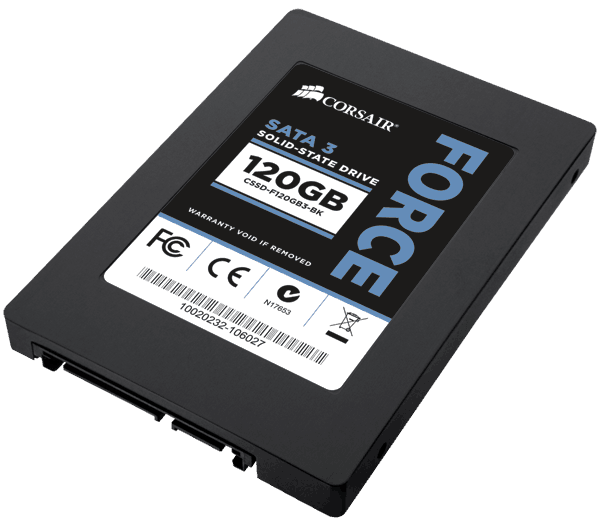
Corsair Force3 SSD

Corsair Force3 SSD 120GB

The upgrade came in the form of  a Corsair SSD with 128GB capacity. So far the system has performed flawlessly. I only have the system run an occasional

# fstrim -v /

to manually force TRIM on my root drive.

Again, I think on a system such as a MythTV backend, an SSD makes little sense. Sure, database acccess is much faster, but with todays amounts of memory that is likely in RAM anyway. And with all recordings and videos sitting on a large conventional disk, there is litte advantage with an SSD. If there’s other workloads of course it may look like a different game alltogether.

What has really dramatically improved is the performance of VMWare. Windows in a virtual machine stresses the hard disk quite a bit. Having a fast disk made a large difference and hence, backing up bluray disks is much more fun.

Graphics Upgrade

My proven GeForce 7200 graphics card suddenly started to behave strangely. At first I thought it was something else because the entire system crashed. Only after quite some digging in log files I realized that it must be the GPU. Hardware failure after all these years 😉

So I was in for new video card. Based on my experience I had the following wishlist:

  • NVidia based card
  • HDMI
  • VDPAU support
  • passively cooled
  • single slot cooler

NVidia because their drivers under Linux have never let me down. They work flawlessly even with my dual monitor/Plasma TV setup. HDMI because I wanted to run digital audio to my TV across that one cable. VDPAU to offload video decoding to the GPU for my 2GHz Core2Duo is not quick enough with heavy HD decoding. Passive cooling is a must because the tiny fans on low end GPUs fail so quickly its not even funny. The single slot cooler simply because I hate to give up a slot for a cooler.

I found everything in the form of the Gigabyte GT-610 minus the single slot cooler. Luckily it only blocks a regular PCI slot that I no longer need since I upgraded to PCIe based DVB-C.

Gigabyte GT610 Video Card

Gigabyte GT610

The card offers HDMI, DVI and a VGA connector.

Installation

Installation under Mythbutu 12.04 was straightforward:

  • deactivate NVidia drivers in Mythbuntu control center
  • remove old GeForce video card
  • drop in new GPU
  • reactivate Nvidia drivers

Because the video cards are so different the use a different set of drivers. Hence it is important to always deactivate/uninstall the one currently in use when upgrading the GPU.

In mythfrontend VDPAU GPU acceleration for video decoding can be turned on in the settings. On my Core2Duo based system this showed a drop in CPU usage for a HD video from close to 200% to roughly 20% CPU usage. No stuttering and perfect quality.

Sound over HDMI

To get the sound to play across HDMI one needs to select the HDA NVidia card in alsamixer by pressing F6. The video card should automatically show up as a new sound device. All that was necessary was to activate the S/PDIF sound in alsamixer.