Archiv der Kategorie: Linux

AirPlay on Ubuntu

I wanted to have the capability to play music from my phone wirelessly to my home. I already have an AirPort Express station that takes care of that. I recently purchased a BOSE Soundlink mini for my kitchen. The Bose speaker came out on top for its small size and its stunning sound quality. Its largest drawback though being that it is incompatible with AirPlay. The second drawback is that its AUX input can only be accessed directly on the speaker and not dock-like via its charging cradle.

Anyway I figured I could use my AirPort Express to hook up the BOSE speaker and since I already run cables to my stereo from my Mythbuntu server to my stereo I was looking into finding a way to use that as an AirPlay base.

Basically AirPlay is an encrypted protocol to allow vendor lock in. In this case Apple. The community managed to reverse engineer the RAOP protocol and so the key is available publicly on the net for example here.

The first solution I found was Shairport which essentially acts as a standalone daemon and is basically plug and play. I am not going to copy paste all the steps necessary as they are very self explanatory on the Shairport site.

A bit later I found that MythTV and Mythbuntu for that matter provide built in AirPlay support. You just need to download the key and have MythTV start the service at launch. All that is necessary is explained here and applies also to my Mythbuntu 12.04 or Ubuntu 12.04 for that matter running MythTV 0.25.

It remains to be seen if this still works when I update this spring to 14.04LTS.

Upgrades to MythTV system

After my system was quietly humming away for years it was time for an upgrade. One part was concerning the storage system whilst the other had to do with my video card.

Storage Upgrade

I remember my very first build having used a 80GB disk for the recordings. A lot has happened in the meantime and capacities are up by orders of magnitude. The sweetspot currently being in the 3-4TB class. Drive storage has continually grown in my system, sometimes by adding an additional drive and in some instances by replacing a couple drives by a newer model of higher capacity. We all know by now that the only thing not having kept up was the speed of the drives. The answer came in the form of SSD drives a few years ago.

The first SSDs hitting the market suffered from the same set of problems that any new technology does in its infancy. Poor reliability paired with high prices and a rather bad support – in this case the operating systems that were not capable of dealing decently with SSDs.

By now most of these problems are gone. While my system would not get a huge performance boost in its normal workload I still liked the idea of having a fast system disk.
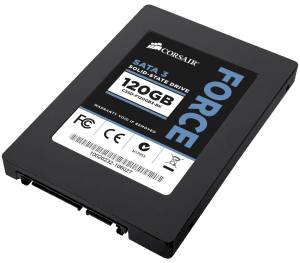
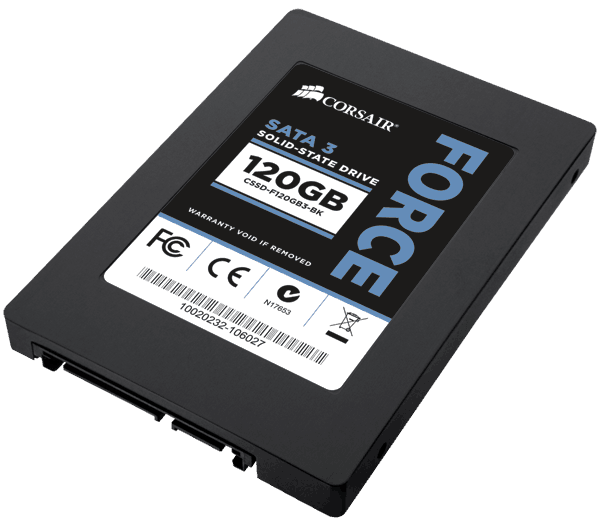
Corsair Force3 SSD

Corsair Force3 SSD 120GB

The upgrade came in the form of  a Corsair SSD with 128GB capacity. So far the system has performed flawlessly. I only have the system run an occasional

# fstrim -v /

to manually force TRIM on my root drive.

Again, I think on a system such as a MythTV backend, an SSD makes little sense. Sure, database acccess is much faster, but with todays amounts of memory that is likely in RAM anyway. And with all recordings and videos sitting on a large conventional disk, there is litte advantage with an SSD. If there’s other workloads of course it may look like a different game alltogether.

What has really dramatically improved is the performance of VMWare. Windows in a virtual machine stresses the hard disk quite a bit. Having a fast disk made a large difference and hence, backing up bluray disks is much more fun.

Graphics Upgrade

My proven GeForce 7200 graphics card suddenly started to behave strangely. At first I thought it was something else because the entire system crashed. Only after quite some digging in log files I realized that it must be the GPU. Hardware failure after all these years 😉

So I was in for new video card. Based on my experience I had the following wishlist:

  • NVidia based card
  • HDMI
  • VDPAU support
  • passively cooled
  • single slot cooler

NVidia because their drivers under Linux have never let me down. They work flawlessly even with my dual monitor/Plasma TV setup. HDMI because I wanted to run digital audio to my TV across that one cable. VDPAU to offload video decoding to the GPU for my 2GHz Core2Duo is not quick enough with heavy HD decoding. Passive cooling is a must because the tiny fans on low end GPUs fail so quickly its not even funny. The single slot cooler simply because I hate to give up a slot for a cooler.

I found everything in the form of the Gigabyte GT-610 minus the single slot cooler. Luckily it only blocks a regular PCI slot that I no longer need since I upgraded to PCIe based DVB-C.
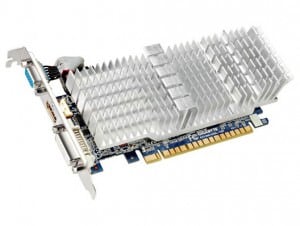
Gigabyte GT610 Video Card

Gigabyte GT610

The card offers HDMI, DVI and a VGA connector.

Installation

Installation under Mythbutu 12.04 was straightforward:

  • deactivate NVidia drivers in Mythbuntu control center
  • remove old GeForce video card
  • drop in new GPU
  • reactivate Nvidia drivers

Because the video cards are so different the use a different set of drivers. Hence it is important to always deactivate/uninstall the one currently in use when upgrading the GPU.

In mythfrontend VDPAU GPU acceleration for video decoding can be turned on in the settings. On my Core2Duo based system this showed a drop in CPU usage for a HD video from close to 200% to roughly 20% CPU usage. No stuttering and perfect quality.

Sound over HDMI

To get the sound to play across HDMI one needs to select the HDA NVidia card in alsamixer by pressing F6. The video card should automatically show up as a new sound device. All that was necessary was to activate the S/PDIF sound in alsamixer.
Build driver for Digital Devices Cine CT V6

There is also a complete package if you do not want to roll your own. Unfortunately it does not work with Ubuntu 14.10 as of today.

Getting the drivers for the Digital Devices Cine CT V6 to work is a bit different from 14.04 as there is no prebuilt version in a PPA. So it is back to recompiling from source with every kernel update. Luckily it is fairly easy after I found this post:

It will work with Kernels up to 3.18

Build and install driver for Ubuntu 14.10

First install a few packages. Mercurial to get hg to work, ncurses and the current linux source files needed if you want to only build drivers for your card and deselect the others with make menuconfig.

sudo aptitude install mercurial git libproc-processtable-perl ncurses-dev linux-source
hg clone http://linuxtv.org/hg/~endriss/media_build_experimental
cd media_build_experimental
make download
make untar
./build --check-only
make menuconfig
make
make install

install the firmware for the card (still in the same directory):

experimental/oe/get_dvb_firmware drxk

load the kernel module

modprobe ddbridge
After a kernel update, the drivers need to be rebuilt:
cd media_build_experimental
make distclean
make untar
make menuconfig
make
make install

More information can be found on Digital Devices support page and on vdr-portal.de.

Thanks to Oliver Endriss who made this work!

Limit user to chrooted SFTP access

If you would like to give a user sftp only access and have him chrooted in his own home dir, this is what does the trick:

This has been tested on an Ubuntu 12.04 LTS system.

Add the user as you normally would. Then you need to change the users default shell

# usermod -s /usr/lib/sftp-server
# echo ‚/usr/lib/sftp-server‘ >> /etc/shells

For security reasons the root jail needs to be owned by root itself with the correct mode. Otherwise it will not work and errors get thrown in auth.log.

# chown root:root /home/username
# chmod 755 /home/username

if you want the chrooted user to have write access – which is impossible in the root jail itself you need to create a dropbox

# mkdir /home/username/dropbox
# chown username:usergroup /home/username/dropbox
# chmod 755 /home/username/dropbox

Chrooting and limiting to SFTP

Edit /etc/ssh/sshd_config

Match user username
#Match group groupname
ChrootDirectory %h
ForceCommand internal-sftp
AllowTCPForwarding no
X11Forwarding no

then issue

# sshd -t
# service sshd restart

Kerio Contacts Export Script (.eml to .vcf)

The Kerio Mailserver is a very good product in my eyes. It is easy to administer and offer almost all features needed in a groupware solution: Calendars, email, contacts, shared folders etc. It runs on Mac OS X, Linux and Windows and can operate as an Exchange replacement. It talks to all popular commercial and Open Source Clients such as AppleMail, Thunderbird, Outlook etc.

KMS stores contacts in the public folder as email messages. The body of the message is a V. 3.0 VCard. The following script exports all contacts from the Kerio Mailserver directory to a backup directory, strips the email header and changes the line endings from DOS CR/LF to *nix LF.

  • Change line endings
  • Strip email header
  • Output to new file with .vcf extension

The script is really an quick hack, it does not do any real error checking and stuff, so it can definitely die.
The script has been tested on Mac OS X but should also run on Linux. Don’t know about windoze.

#! /bin/bash 

# kerio_vcard_export.sh
# Version 1.0 Last Updated: December 4th 2006
#
# Software License Agreement
#
# Copyright (C) 2006, Simon Grasser (simeli). http://osiris.simeli.net
# All rights reserved.
#
# Redistribution and use in source and binary forms, with or without
# modification, are permitted provided that the following conditions are
# met:
#
# * Redistributions of source code must retain the above copyright
# notice, this list of conditions and the following disclaimer.
# * Redistributions in binary form must reproduce the above copyright
# notice, this list of conditions and the following disclaimer in the
# documentation and/or other materials provided with the distribution.
# * Neither the name of Simon Grasser nor the names of its contributors
# may be used to endorse or promote products derived from this
# software without specific prior written permission of Simon Grasser.
#
# THIS SOFTWARE IS PROVIDED BY THE COPYRIGHT HOLDER AND CONTRIBUTORS „AS
# IS“ AND ANY EXPRESS OR IMPLIED WARRANTIES, INCLUDING, BUT NOT LIMITED
# TO, THE IMPLIED WARRANTIES OF MERCHANTABILITY AND FITNESS FOR A
# PARTICULAR PURPOSE ARE DISCLAIMED. IN NO EVENT SHALL THE COPYRIGHT OWNER
# OR CONTRIBUTORS BE LIABLE FOR ANY DIRECT, INDIRECT, INCIDENTAL, SPECIAL,
# EXEMPLARY, OR CONSEQUENTIAL DAMAGES (INCLUDING, BUT NOT LIMITED TO,
# PROCUREMENT OF SUBSTITUTE GOODS OR SERVICES; LOSS OF USE, DATA, OR
# PROFITS; OR BUSINESS INTERRUPTION) HOWEVER CAUSED AND ON ANY THEORY OF
# LIABILITY, WHETHER IN CONTRACT, STRICT LIABILITY, OR TORT (INCLUDING
# NEGLIGENCE OR OTHERWISE) ARISING IN ANY WAY OUT OF THE USE OF THIS
# SOFTWARE, EVEN IF ADVISED OF THE POSSIBILITY OF SUCH DAMAGE.
#
#
###############################################################################
#
# You need to run the script as root to have access to the kerio files.
# The script allows to change the owner of the file to be changed – e.g.
# a non privileged user.
#

DATE=“/bin/date“

# the directory of the contacts you’d like to export
MAILSERVER=’/usr/local/kerio/mailserver/store/mail/company.com/#public/Contacts/#msgs‘

# name of the user whoe should own the exported files
OWNER=“adm“

# the directory in which you’d like to save the contacts
VCARD_DIR=’/Users/adm‘

#
# Nothing needs to be edited below this line
#

# the name of the folder in which we put the backup
# formatted with the date and time of the backup
VCARD_FOLDER=“KerioVCardBackup.`$DATE +%Y%m%d%H%M`“

# Making backup directory $VCARD_FOLDER/tmp
mkdir -p $VCARD_DIR/$VCARD_FOLDER/tmp

cd $MAILSERVER

# copy all contact files to the backup directory
cp *.eml $VCARD_DIR/$VCARD_FOLDER/tmp

# loop over all contact files in backup temp directory
cd $VCARD_DIR/$VCARD_FOLDER/tmp
for vcard in *.eml
do
echo „processing $vcard : change CR/LF, strip header“

# change DOS CR/LF to *nix line endings and strip the header of the message
# then output the „correct“ VCards to the backup directory
sed -e ’s/.$// ; 1,/^$/ d‘ <$vcard | iconv -f UTF8 -t MACROMAN > $VCARD_DIR/$VCARD_FOLDER/${vcard/%eml/vcf}
done;

# remove temporary files
rm -rf $VCARD_DIR/$VCARD_FOLDER/tmp

# change owner of the exported files
chown -R $OWNER $VCARD_DIR/$VCARD_FOLDER